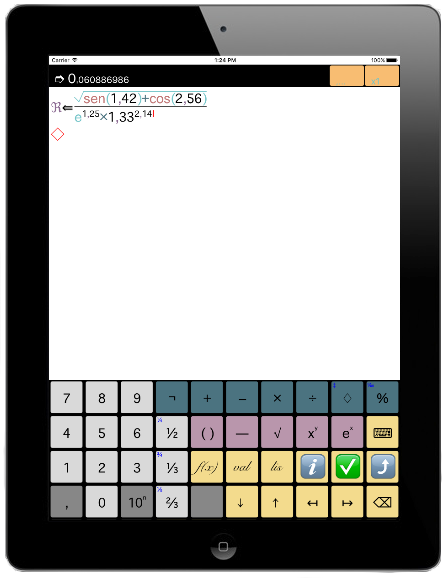
KEYBOARD
To facilitate and empower the use of the programming elements, Eureka has a set of contex-sensitive virtual keybords, that autoconfigure depending on the programming fase we are. Each virtual keyboard form a panel of configurable keys.
The panels that make up the keyboard are:
1. Alphabetical.
2. Numerical.
3. Basic calculator.
4. Extended mathematics.
5. New line.
6. Simple assignment.
7. List assignment.
8. Configuration.
There is a keyboard with the symbols required for editing and programming the elements at the bottom of the programming screen. It is a dynamic, flexible keyboard that can be adapted for writing any given element or section of an element selected. It is made up of two panels, each of which can be viewed whenever necessary.
THE STANDARD KEYBOARD HAS:
• 50 keys divided into five rows of 10 keys each in the normal position (vertical) or into four rows of 13 keys in landscape mode (horizontal).
• A standard symbol is assigned to each key according to the configuration of the active dynamic panel.
• In addition to the standard symbols, a supplementary symbol can be added to each key. These supplementary symbols are displayed on the top left-hand side of each key and are activated by pressing the key for more than one second.
Some of these supplementary symbols are fixed and therefore form part of the key on which they appear, whilst others are floating symbols that appear and disappear as required, depending on where the cursor is and the suitability of the symbol.

Special keys. Some keys have generic browsing functions that are valid for all panels.

 ARROW KEYS FOR MOVING
the cursor left or right. This is the only way the cursor can be placed in position.
 ALTERNATIVE KEYBOARD
Goes from one panel to another on the keyboard (if this is possible).
 ACCEPT
Validates any data entered, carries out calculations or displays the menu for saving expressions.
The special keys are in a different colour to make it easy to identify them.
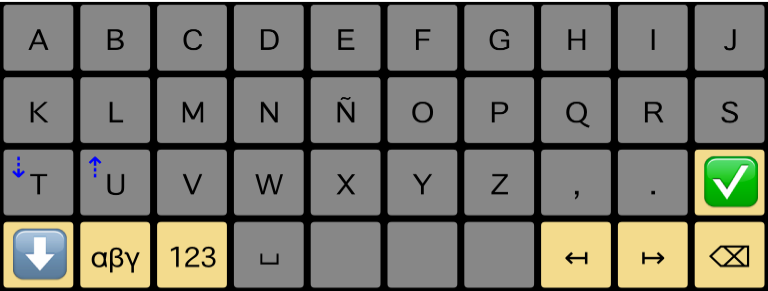
1. ALPHABETICAL KEYBOARD
This enables users to write the symbolic names of the elements and their descriptive title.
It is automatically displayed when the name of an element is assigned if it is being created or updated, that is, whenever the window assigned the name is enabled.
It is made up of two different panels:
• the first with the Latin alphabet
• the second with the Greek one.
Thus, characters from both alphabets can be selected to create the names of elements and the calculation settings.
There are four supplementary symbols on the keys at the bottom left-hand corner that can be used to enter subscripts (⇣), superscripts (⇡), join characters (⇇) or add embellishments (§) by pressing them for one second
 Change the keyboard from uppercase to lowercase and vice versa.
Changes the keyboard from the Latin to Greek alphabet.
Enable the cursor to be placed in the right place.
 Deletes the character to the left of the cursor.
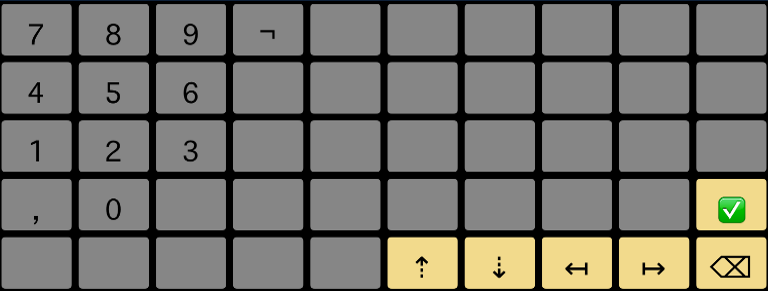
2. NUMERICAL KEYBOARD
The numerical keyboard enables users to enter the numerical values in the expressions.
It is made up of the 10 digits (0–9) set out as a calculator, the decimal separator (,) and the scale, which makes it possible to express very small or very big numbers using the exponential notation (or scientific notation) by adding a power of 10 (positive or negative).
Once the key has been pressed, the space for exponents (digits only) opens. If the key is pressed again, the exponent changes signs.
In order to quit the space for exponents, move the arrow to the right as is the case for all other groups.
Enable the cursor to be placed in the right place.
Deletes the character to the left of the cursor.
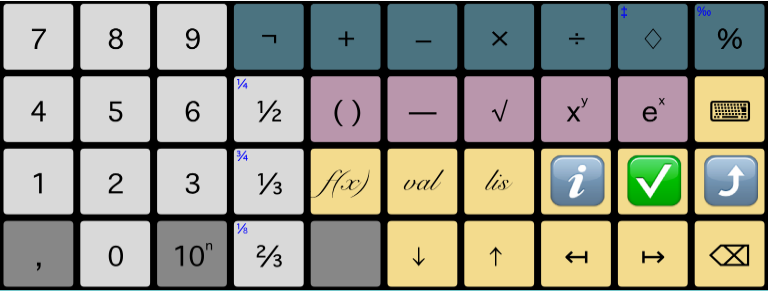
3. BASIC CALCULATOR KEYBOARD
This is the main keyboard used for programming formulae and simple mathematical expressions.
It has the operators required for simple algebraic operations for groups and regular groups, and for the mathematical elements used in formulae, such as summation and decision tables. The first line of the mathematical keyboard is made up of basic operators that express simple arithmetical operations:
• (¬) Change of sign
• (+) Addition
• (–) Subtraction
• (×) Multiplication
• (÷) Short division
• (◊) Module or remainder of an integer division.
• (%) Percent
Depending on which part of a formula is being programmed,
the auxiliary operators or values are temporarily superimposed on the main keys in one corner of the screen.
• (‡) Division quotient or integer division (result in whole numbers)
• (‰) Per mille are displayed permanently in one corner of the screen
When a conditional statement is being programmed (conditions, conditional loops, conditional decision tables), the following corner screens are superimposed on the operator keys:
• (═) equal to
• (≠) not equal to
• (<) less than
• (>) greater than
• (≤) less than or equal to
• (≥) greater than or equal to
• (∧) logical ‘and’
• (∨) logical ‘or’
• (¬) logical ‘not’
Switches from the basic to the extended keyboard.


 Show all the formulae, values and lists.
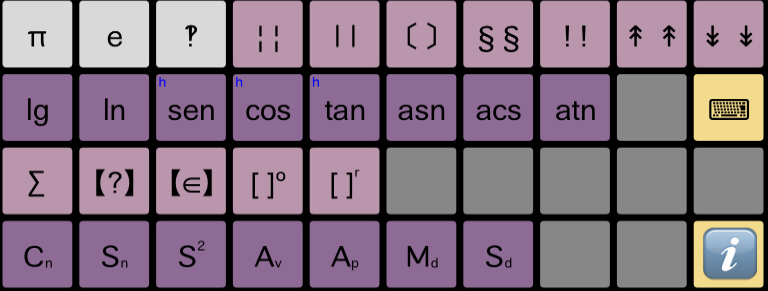
4. EXTENDED MATHEMATICAL KEYBOARD
This is made up of a second panel from the programming phase of formulae with specialised mathematical functions, according to user settings.
The calculation constants, the logarithmic and trigonometric functions, the statistical, financial and actuarial functions, and, in general, the mathematical packages that are dynamically added in settings can be found here.
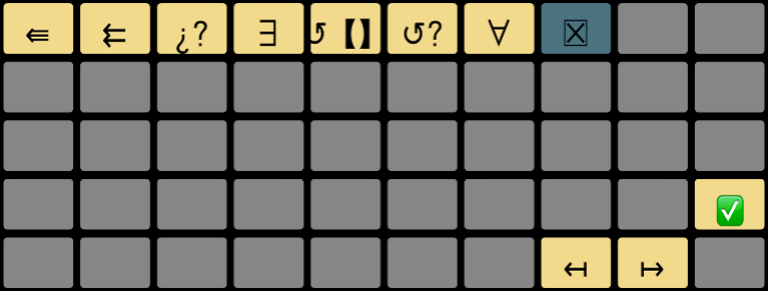
5. NEW LINE KEYBOARD
When the cursor is placed at the beginning of a line, this keyboard makes it possible to include program lines in front of the current position.
The special keyboard for inserting a new line appears when the cursor is placed in a line insertion position, or when a request for a new line has been made on the assignment keyboards.
The new line is inserted in front of the line on which the cursor is placed (unless the end of the program has been reached, in which case the line is added at the end).
Each key corresponds to a type of line that can be inserted:
 Assignment of a simple value
 Assignment of a list
 Logical condition (yes or no)
 Option
 Loop of values
 Conditional loops
 List loop.
 delete the whole block (according to the type of line).
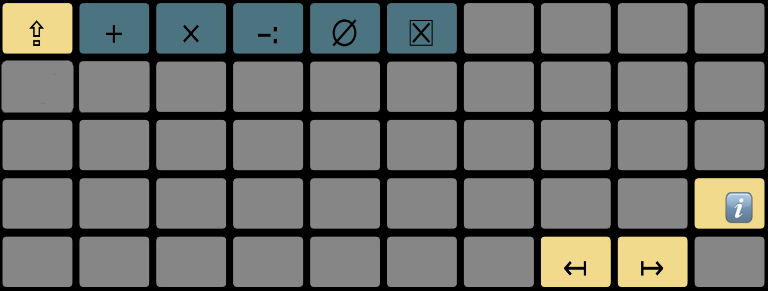
6. SIMPLE ASSIGNMENT KEYBOARD
This enables the target variable to be associated with a value assignment, or to apply a modifier to it (+, − , × , ÷, ℛ)
When the writing pointer is placed in front of an assignment instruction, the special assignment keyboard is shown.
The first row has the instruction modifiers.
 New Line key: which enables users to add a new program instruction in front of the assignment.
. (The ‘New Line’ key is then displayed.) This is followed by the assignment modifiers, which enable users to add an operator to the assignment that is executed using the result's previous value.
 the result of the expression assigned is added to the previous target value.
 the result is subtracted.
 the result is multiply.
 the result is divide.
This makes it possible to create complex calculations in a number of successive assignments by combining the results of previous ones.
 It is used to assign the result of an expression to the value of the result (this is the default value).
Removes the whole line.
The rest of the keyboard is filled by the simple values stored in the library. By pressing any one of them, the value is set as the target of the assignment.
The keyboard also has an area for names whose keys are the parameters of the formula being defined and the auxiliary values, which can also be used for the calculation.
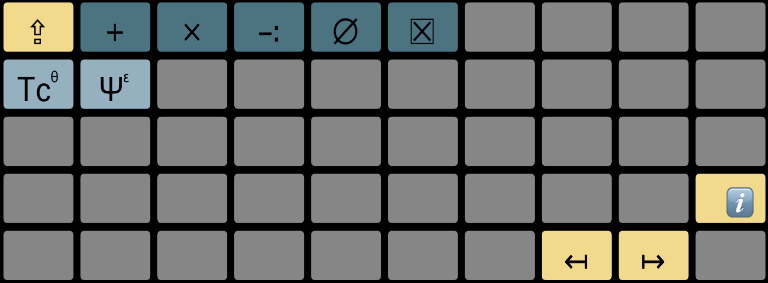
7. LIST ASSIGNMENT KEYBOARD
This is used to assign the result of a repeated calculation to the target list, or to make a modification to the way it is assigned (+, × , -: , ∅ ).
When the cursor is placed in front of a list assignment instruction, a special list assignment keyboard is displayed.
The instruction modifiers can be found on the first row. As they are identical to those on the simple assignment keyboard with the same functions, they are not discussed here (see the relevant section for full details).
The only difference is that there is no ℜ key (for obvious reasons) and that the values shown on the rest of the keyboard to be used as the assignment target are the existing lists.
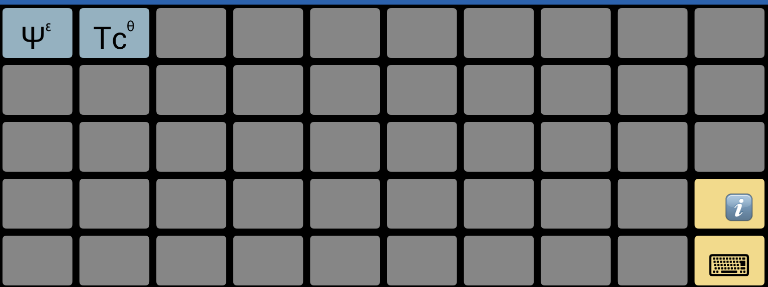
8. SYMBOLIC KEYBOARD
This keyboard contains all of the programming elements defined by the user that can be added to formulae. A panel is displayed for each type of symbol (formula, value, list). Symbols defined in formulae that use these elements can be included recursively.